Job Application
Overview
The Job Application page allows students to view and manage their work program applications across different semesters. You can track application status, edit pending applications, and remove applications when necessary.
How to Access
Navigation Path: Main Menu → Work Program Menu → Job Application
Page Features
Semester Selection
- Dropdown Menu: Select specific semesters to view applications
- Current Semester: Automatically loads your current semester applications
- Historical View: Access applications from previous semesters
- Dynamic Loading: Applications update automatically when semester changes
Job Applications Table
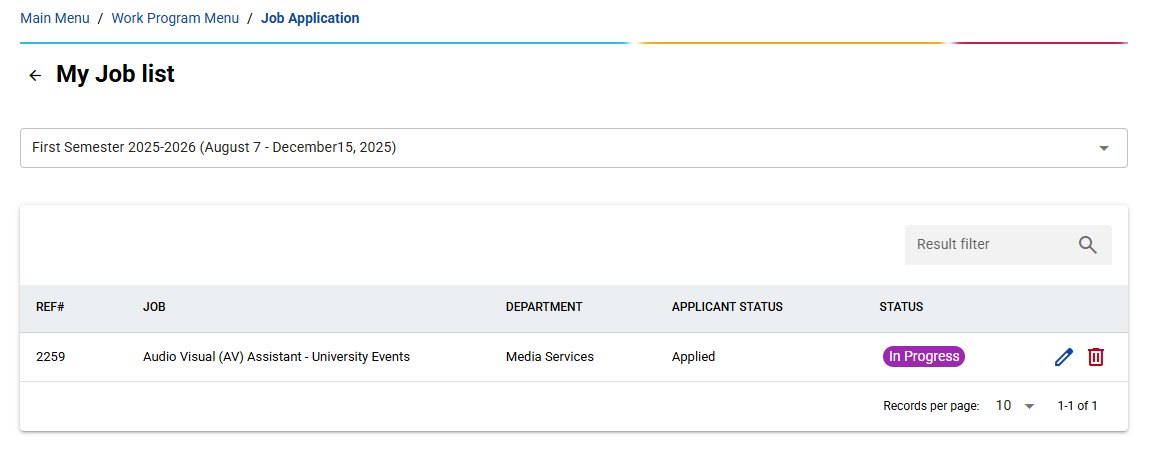
View all your job applications in an organized table with:
Column Information
- REF#: Unique reference number for each application
- JOB: Position title you applied for
- DEPARTMENT: Department offering the position
- APPLICANT STATUS: Your application standing
- STATUS: Current processing status with color coding
Status Color Coding
- 🟢 Approved (Green) - Application accepted
- 🔴 Rejected (Red) - Application declined
- 🟣 In Progress (Purple) - Under review
Search and Filter
- Search Box: Filter applications by any column content
- Real-time Search: Results update as you type (300ms delay)
- Clear Results: Easy search clearing functionality
Available Actions
Edit Application
- When Available: Only for non-finalized applications
- Disabled For: Approved, Terminated, or Closed applications
- Purpose: Update your application details
Delete Application
- When Available: Only for pending applications
- Disabled For: Approved, Terminated, or Closed applications
- Confirmation: Requires confirmation before deletion
- Warning: Permanent action that cannot be undone
Step-by-Step Usage
Viewing Your Applications
- Select Semester: Choose the semester from the dropdown
- Review List: Browse your applications in the table
- Use Search: Filter results if you have many applications
- Check Status: Monitor application progress through color coding
Editing an Application
- Locate Application: Find the application you want to modify
- Check Status: Ensure the edit button is enabled (not greyed out)
- Click Edit: Click the pencil icon in the Actions column
- Review Information: See job title and department details
- Update Fields: Modify the editable information
- Submit Changes: Save your updates
Editable Fields in Edit Dialog
- Work Experience at AIU: Years of experience (number input)
- Previous Department: Select multiple departments from dropdown
- Hours Worked per Week: Your available hours (number input)
- Confirmed Hours per Week: Committed hours (number input)
- Previous Job at AIU: Description of prior positions
Deleting an Application
- Locate Application: Find the application to remove
- Verify Status: Ensure the delete button is available
- Click Delete: Click the trash icon in the Actions column
- Confirm Deletion: Read the warning and confirm if certain
- Complete: Application is permanently removed
System Notifications
- Success Messages: Green notifications for successful actions
- Error Alerts: Red notifications for failed operations
- Status Updates: Automatic notifications for application changes
- Confirmation Dialogs: Clear confirmations for destructive actions
The Job Application page serves as your central hub for managing all work program applications, providing transparency in the application process and control over your submissions while maintaining appropriate safeguards for finalized applications.