Work Program Menu
Overview
The Work Program Menu provides students with access to work-related activities and tracking tools within the SARRA system.
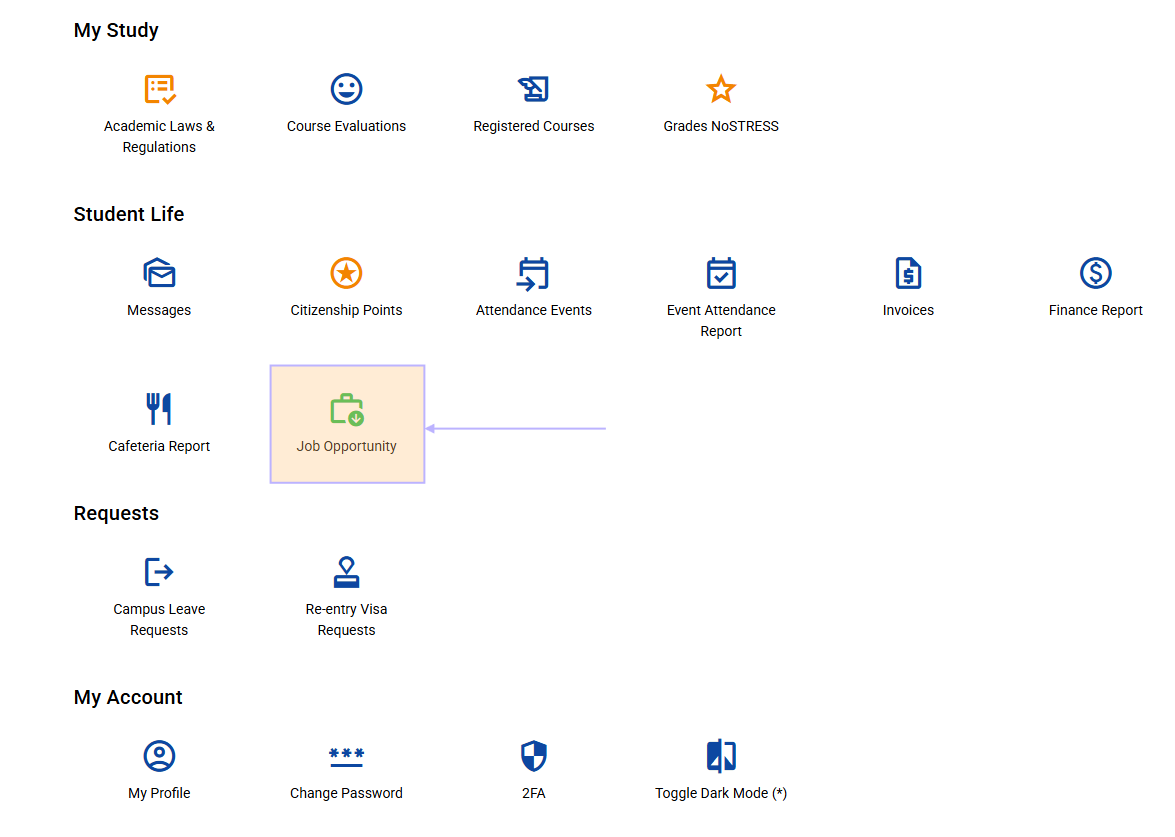
How to Access
- Navigate to the Main Menu from your student dashboard
- Click on Work Program Menu to access work-related features
Available Features
General Section
 The menu is organized into functional groups. Currently available:
Job Application
- Purpose: Apply for available work positions
- Action: Click to view and apply for job opportunities
- Next Step: Complete application forms and submit required documents
- Learn More: See the Job Application Guide for managing your applications
Track Hours
- Purpose: Log and monitor your work hours
- Action: Record daily work activities and time spent
- Important: Regular tracking is required for program compliance
- Status: High priority (marked in red)
- Learn More: See the Track Hours Guide for detailed instructions
Job List
- Purpose: View all available job positions
- Action: Browse current job openings and requirements
- Use: Research positions before applying
- Learn More: See the Job List Guide for detailed instructions
Navigation Tips
- Use the breadcrumbs at the top to return to the Main Menu
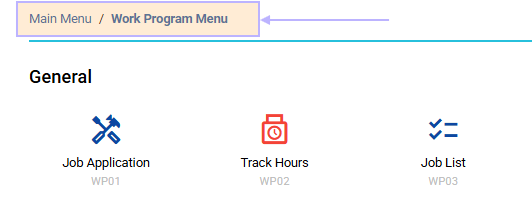
- Each menu item shows its purpose with descriptive icons
- The interface adapts to your device (mobile, tablet, desktop)
- Your theme preference (dark/light mode) is automatically applied
Getting Started
- Start with Job List to explore available positions
- Use Job Application to apply for suitable roles
- Once working, regularly use Track Hours to log your time
Support
If you need assistance with any work program features, contact your program coordinator or use the help resources in the main menu.