Work Applicants Management
Overview
The Work Applicants page is your comprehensive hub for managing all student applications to work program positions. This powerful interface allows you to view, filter, process, and communicate with applicants efficiently.
Getting Started
Access this page by clicking the "Applications Received" card on the Work Program Menu dashboard. The page automatically loads the current semester's applications and provides real-time updates.
Page Layout and Navigation
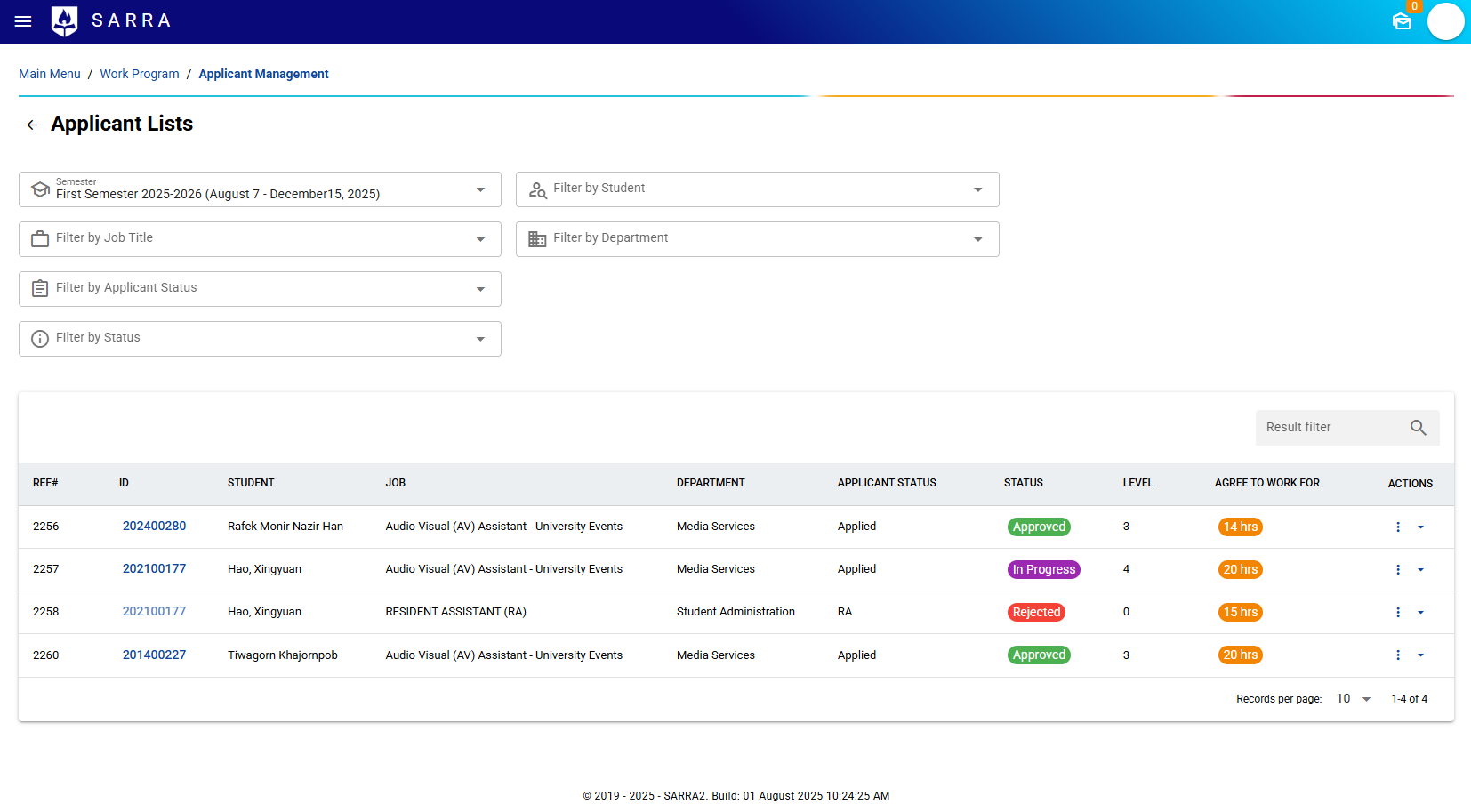
Header Section
- Breadcrumb Navigation: Shows your current location (Main Menu > Work Program > Applicant Management)
- Back Button: Quick return to the Work Program Menu
- Page Title: "Applicant Lists" with clear visual hierarchy
Advanced Filtering System
Multi-Level Filters
The page features a sophisticated three-row filtering system to help you find specific applications quickly:
Row 1: Core Filters
- Semester Selection: Choose which semester's applications to view
- Student Filter: Search by specific student name
Row 2: Job & Department Filters
- Job Title Filter: Filter by specific work positions
- Department Filter: Show applications by department
- Applicant Status Filter: Filter by student need level (Required/Needy/Willing)
Row 3: Status & Actions
- Status Filter: Filter by application status (In Progress/Approved/Rejected)
- Clear All Filters: Remove all active filters with one click
- Results Counter: Shows filtered vs. total results
Filter Behavior
- Auto-Update: Filter options update based on available data
- Real-time Results: Filtering happens instantly as you make selections
- Visual Indicators: Active filters are clearly marked
- Clear Feedback: Counter shows how many records match your filters
Application Table
Column Information
The main table displays comprehensive applicant data:
- REF#: Unique reference number for tracking
- ID: Student ID (clickable to view profile)
- STUDENT: Full student name
- JOB: Position title they applied for
- DEPARTMENT: Department offering the position
- APPLICANT STATUS: Student's need classification with color coding
- STATUS: Current application status with color-coded chips
- LEVEL: Assigned skill level (1-4)
- AGREE TO WORK FOR: Hours per week commitment
- ACTIONS: Dropdown menu with available actions
Status Color Coding
- Purple Chips: In Progress applications
- Green Chips: Approved applications
- Red Chips: Rejected applications
- Orange Chips: Hours commitment indicator
Student Profile Modal
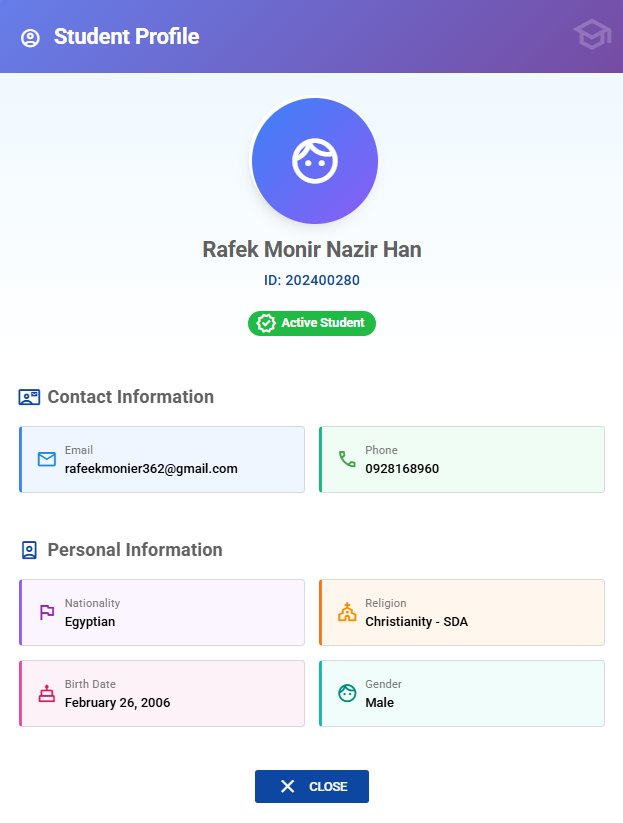
Accessing Student Profiles
Click any student ID in the table to open a comprehensive profile modal featuring:
Profile Header
- Student Photo: Professional display with fallback icons
- Basic Info: Full name, student ID, and status
- Visual Design: Gradient backgrounds and clean typography
Contact Information
- Email Address: Personal email with verification status
- Phone Number: Mobile contact information
- Visual Cards: Color-coded information cards
Personal Details
- Nationality & Religion: Cultural background information
- Birth Date & Gender: Personal demographics
- Organized Layout: Grid-based responsive design
Academic Information
- Program Details: Current academic programs
- Level Information: Academic year/level
- Comprehensive View: All enrolled curricula
Application Management Actions
Quick Actions Menu
Each application row features a dropdown menu with context-sensitive options:
Quick Approve (for In Progress applications)
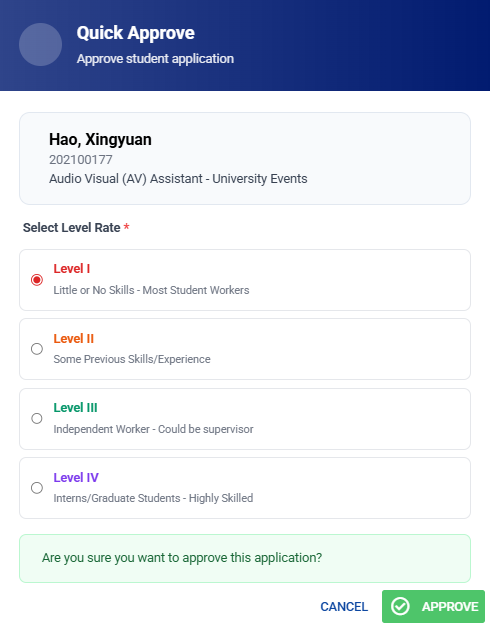
- Level Selection: Choose appropriate skill level (1-4) with descriptions
- Level Guidelines:
- Level I: Little/No Skills - Most Student Workers
- Level II: Some Previous Skills/Experience
- Level III: Independent Worker - Could be supervisor
- Level IV: Interns/Graduate Students - Highly Skilled
- Instant Processing: Immediate status update with notifications
Quick Reject (for In Progress applications)
- Reason Entry: Optional rejection reason field
- Immediate Action: Instant status update
- Professional Communication: Structured rejection process
Edit Application
- Full Form Access: Complete application editing interface
- Validation Rules: Ensures data integrity
- Status Management: Comprehensive status control
Send Email Notification
- Status-Based Templates: Automatic email content based on current status
- Custom Messages: Add additional information for rejections
- Service Integration: Handles email delivery with fallback notifications
Check Application Details
- Comprehensive Overview: Complete application history
- Multiple Applications: Shows all positions student applied for
- Work Experience: Previous AIU work history
- Statistics Dashboard: Visual summary with charts
Editing Application
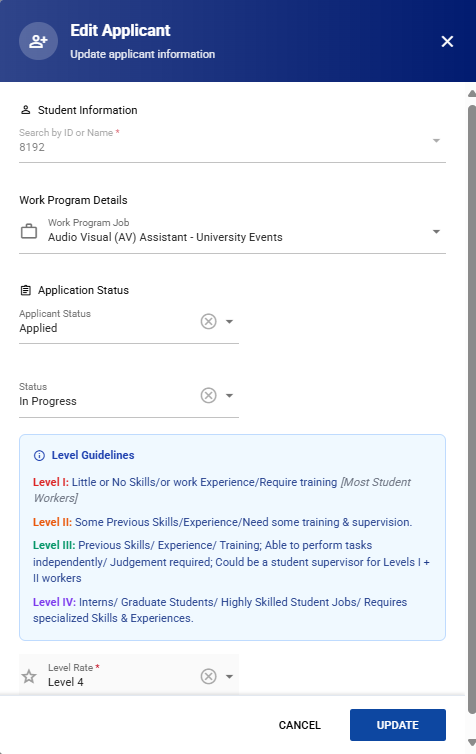
Edit Existing Applications
- Pre-populated Forms: All current data loaded
- Conditional Fields: Some fields locked based on current status
- Validation Logic: Prevents invalid status combinations
- History Preservation: Maintains application timeline
Communication Features
Email System Integration
The page includes sophisticated email capabilities:
Status Notifications (Not working yet)
- Approval Emails: Congratulatory messages with next steps
- Rejection Emails: Professional decline with optional reasoning
- Status Updates: General application progress notifications
Email Preview
- Template Display: Shows exact email content before sending
- Status-Specific Content: Different templates based on application status
- Customization: Add additional information for rejections
Service Reliability
- Fallback Handling: Graceful degradation if email service unavailable
- User Feedback: Clear notifications about email delivery status
- Alternative Communication: Guidance for manual follow-up if needed
Real-Time Features
- Live Updates: Automatic refresh when applications change
- Real-time Notifications: Instant feedback on actions
- Connection Status: Visual indicator of real-time connection
- Automatic Reconnection: Handles network interruptions gracefully
Dynamic Interface
- Instant Filtering: No page refresh needed
- Live Counters: Real-time application counts
- Status Updates: Immediate visual feedback
- Error Handling: Graceful error management with user notifications
Best Practices and Workflows
Daily Application Review
- Start with Filters: Use semester and status filters to focus on pending applications
- Review Student Profiles: Click student IDs to understand applicant backgrounds
- Process Applications: Use quick actions for efficient approval/rejection
- Send Notifications: Use email system to keep students informed
- Check Details: Use application overview for complex cases
Bulk Processing Tips
- Filter by Status: Focus on "In Progress" applications for processing
- Department Focus: Filter by department for specialized review
- Level Assignment: Use guidelines to ensure consistent level assignments
- Communication: Send status emails promptly after decisions
Quality Assurance
- Double-check Levels: Verify skill level assignments match job requirements
- Review Multiple Applications: Check if students applied to multiple positions
- Monitor Workload: Ensure students aren't over-committed on hours
- Documentation: Use rejection reasons for transparency
This comprehensive application management system streamlines the entire process from initial review to final communication, ensuring efficient and professional handling of all student work program applications.