Work Program Menu
Getting Started
The Work Program Menu is your central dashboard for managing all student work program activities. When you first access this page, you'll see a comprehensive overview of your current work program status.
Dashboard Overview
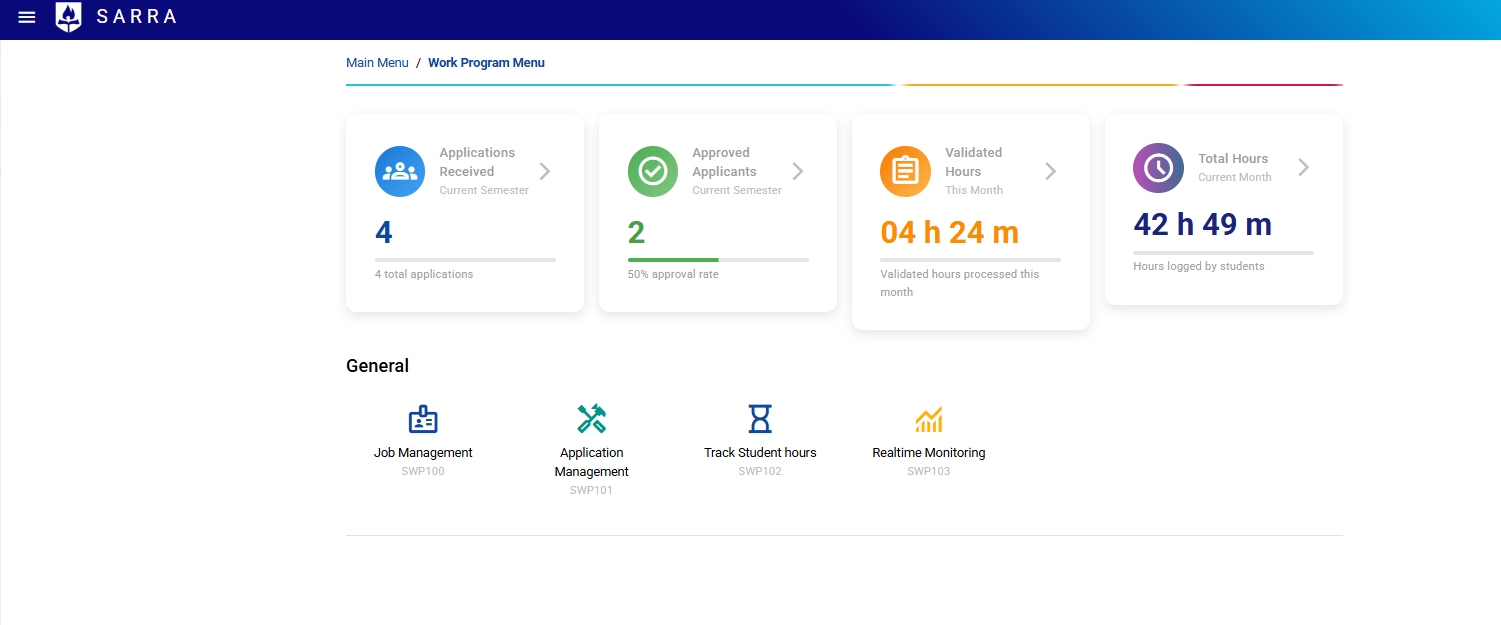
Quick Statistics Cards
At the top of the page, you'll find four colorful summary cards that provide instant insights:
Applications Received (Blue Card)
- Shows the total number of student applications for the current semester
- Click this card to view and manage all applicant details
- Displays a running count of all applications submitted
Approved Applicants (Green Card)
- Displays how many applications have been approved
- Shows the approval rate percentage with a visual progress bar
- Click to check detailed student status information
Validated Hours (Orange Card)
- Shows work hours that have been reviewed and validated this month
- Displays time in hours and minutes format (e.g., "25 h 30 m")
- Click to access detailed validated hours reports
Total Hours (Purple Card)
- Shows all hours logged by students in the current month
- Includes both validated and pending hours
- Click to view comprehensive student hours tracking
Navigation Features
Interactive Cards
- Hover over any summary card to see it lift slightly - this indicates it's clickable
- Each card has a small arrow icon on the right side
- Tooltips appear when you hover, explaining what each card does
Menu Items
Below the summary cards, you'll find organized menu sections with various work program functions. These are grouped by category for easy navigation.
How to Use This Page
Daily Workflow
- Start with the Dashboard: Check the summary cards to get an overview of current activity
- Identify Priorities: Use the numbers to see where attention is needed
- Navigate Efficiently: Click the relevant summary card to go directly to the area you need to work on
Common Tasks
- Review New Applications: Click the "Applications Received" card - see Application Management Guide
- Check Student Progress: Use the "Approved Applicants" card
- Validate Student Hours: Access through the "Validated Hours" card - see Track Student Hours Guide
- Monitor Overall Activity: Review the "Total Hours" card
- Live Student Tracking: Access "Realtime Monitoring" for active student sessions - see Real-Time Student Monitor
- Manage Job Postings: Access through the Work Management section - see Job Management Guide
Visual Indicators
- Progress Bars: Show completion rates and ratios at a glance
- Color Coding: Each function area has its own color for quick recognition
- Real-time Updates: Numbers refresh automatically to show current data
Tips for Efficiency
- Bookmark This Page: Use it as your starting point each day
- Check Regularly: Data updates in real-time throughout the day
- Use Quick Navigation: The summary cards are the fastest way to access specific functions
- Monitor Trends: Watch the approval percentages and hour totals to identify patterns
This dashboard is designed to give you everything you need to manage student work programs effectively, with all key information and functions just one click away.